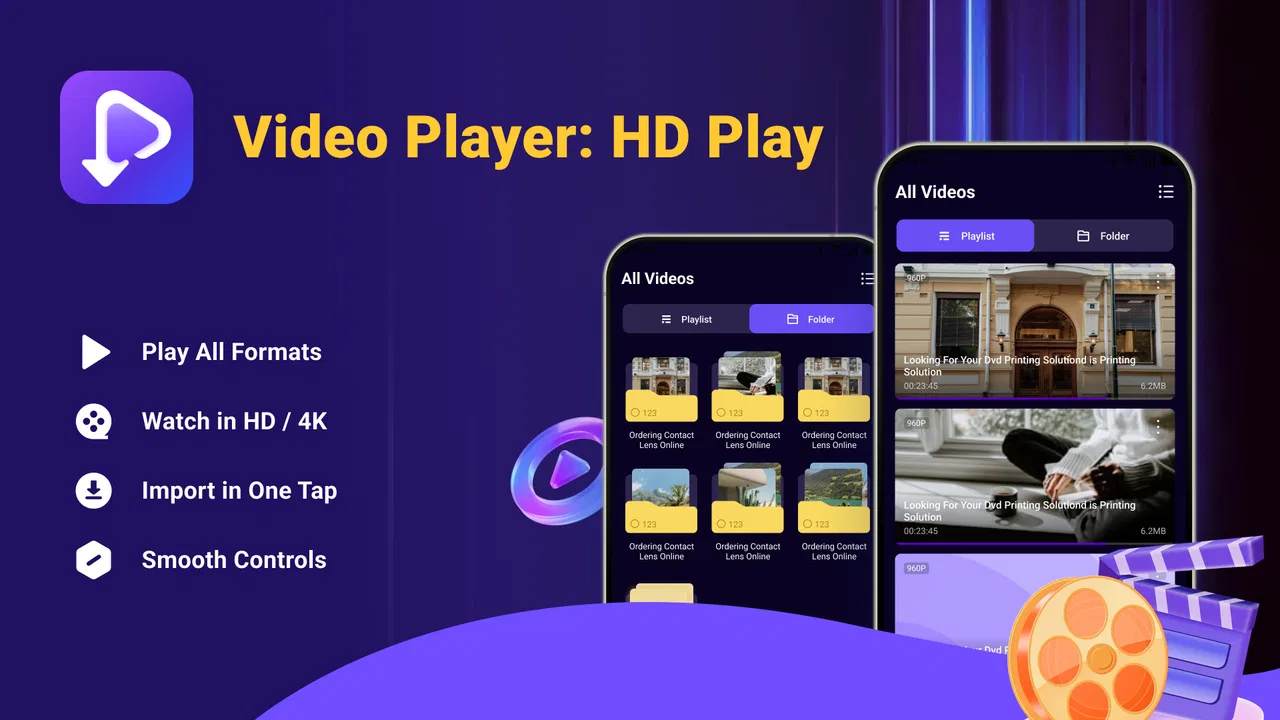
Video Player: HD Play
- 4.5
- Rating
- 1.00M
- Installs
- Free
- Price

 Analysis by App-foxy
When I test a video player, I care less about a crowded feature list and more about what happens when someone sends me an unfamiliar file, when storage is already busy, or when another person needs to use the same phone. Video Player: HD Play is built for that straightforward situation: open a video, import it with minimal effort, and watch it in a range of formats without turning playback into a project. I found its appeal strongest on a shared household device, where different people may have different habits but nobody wants to spend time learning a complicated editor or media library.
This is a free app in the video players and editors category, developed by Dakwah Media. It is aimed at general audiences, with an Everyone age rating, and its current version is V1.0.6. The app has reached over a million installs and holds a 4.5 average from around 4.8 thousand ratings. Those figures suggest that it has found a practical audience, but they do not change the basic question I would ask before installing it: does it make everyday viewing easier than the player already on your phone?
How it works when several people share one device
My most useful test for this kind of app is a normal household handoff. One person records a clip, another receives a downloaded video, and a third wants to watch something without searching through a complicated interface. Video Player: HD Play makes sense in that chain because its central job is immediately understandable. The one-tap import approach reduces the number of decisions between finding a file and starting playback, which is particularly helpful for someone who is not comfortable navigating file managers.
You May Also Like

 Blood Strike: 2.5 Anniversary
Blood Strike’s Loadouts Turn Every Drop Into a Tactical Gamble
A close look at Blood Strike’s custom loadouts: how fast access to signature weapons reshapes its battle royale rhythm, rewards preparation, and narrows the gap between fights.

 Pandora - Music & Podcasts
Pandora’s Music Is Easy to Start, but Harder to Recover
Pandora’s strength is its low-effort path from a seed to a station. Its weak spot is how much confidence it asks you to place in connection, setup, and quiet recovery.

 8 Ball Pool
 Is Built on Rivalries, Rematches, and Routine
A close look at the rivalries, rematches, shared routines, and unanswered safety questions that turn a quick pool match into a persistent mobile community.

 Samsung Music
’s Quiet Strength Is Playing What You Already Own
Its reach comes less from spectacle than from dependable access to a personal library. That simplicity is both the app’s strongest retention engine and its ceiling.

 AccuWeather: Weather Radar
AccuWeather Review: A Quick, Clear Forecast for Everyday Decisions
For everyday plans, the best forecast is the one you can understand quickly. AccuWeather makes rain timing, radar, and local conditions easy to act on, with a few trade-offs.

 Hill Climb Racing
Why Hill Climb Racing Still Turns Crashes Into One More Run
A tiny car, a bumpy hill and one more upgrade: Hill Climb Racing keeps resurfacing because its simple chaos makes every near-miss feel personal.
More From Our News Desk



That simplicity also matters when the phone belongs to the household rather than to one individual. A parent may use it for a personal recording, a teenager may open a different format, and a visitor may only need to watch one clip. A dedicated player keeps those moments separate from editing work. I would not expect every user to understand codecs, containers, or resolution settings, so an app that presents playback as the main task has a practical advantage.
There is a small but important trade-off here. A shared player is convenient, but convenience does not automatically create separate personal spaces. I would treat the app as a viewing tool, not as a household account system. If several people use the same device, I would avoid assuming that each person has an isolated history, private library, or individual preferences unless the app visibly offers those controls during use. That boundary is worth explaining before handing the phone to a child or guest.
For a quick family routine, I would import the needed clips before passing over the device, check that the correct file is selected, and keep the phone’s ordinary lock and user-account protections in place. This is not a criticism of the player; it is simply the sensible way to use any media app on a shared screen. The app can make playback easier, but it should not be mistaken for a replacement for device-level privacy.
Importing files without making the process intimidating
The one-tap import focus is more meaningful than it first sounds. People often have videos in different places: a camera folder, a messaging app, downloaded storage, or a removable location. The friction usually appears before playback, when the user has to identify the right file and understand which app should open it. Video Player: HD Play is most useful when that first step feels direct rather than technical.
I would recommend using a simple naming habit on a shared phone. Rename important household clips clearly before importing them, especially if several recordings look similar in a thumbnail view. That is not an app feature, but it makes the player’s quick-import workflow much safer. It reduces the chance that someone starts the wrong recording or deletes the wrong file later in the device’s storage tools.
Another practical point is to test a representative file before moving a large collection into the app. The promise of broad format support is valuable, but “all formats” can mean different things in real-world use, depending on how a file was encoded. A short test clip tells me whether a particular camera export, download, or message attachment behaves as expected. This is a better workflow than discovering a compatibility problem when the family is waiting to watch something.
I also prefer importing only what I expect to watch soon. A large, mixed folder can make any player feel untidy, even when the controls are smooth. Keeping the working set small makes it easier for different users to find their own clips and reduces accidental taps. For a household device, that kind of organization is more useful than filling the library with every video that happens to be stored on the phone.
Controls that suit quick viewing and longer sessions
The app’s emphasis on smooth controls gives it a clear everyday role. A player should let me pause, resume, move through a clip, and adjust the viewing experience without forcing me into an editing timeline. That distinction matters when I am watching a family recording, checking a downloaded lesson, or reviewing a clip sent by someone else. I want playback controls to disappear when I am watching and return when I need them, rather than compete with the video.
HD and 4K playback are useful when the original file and the phone display can make good use of them. I would not treat the resolution label as a promise that every video will look sharper. A low-quality recording cannot gain detail simply because it is opened in a high-resolution player. The sensible approach is to judge the result from the source file, the display, and the available storage or battery situation together.
For a shared device, I would also check the volume before starting a clip in a public room. A smooth player can still create an awkward moment if a video begins loudly. Headphones are the better choice for private material, especially when children or guests are using the phone near other people. Again, this is part of responsible use around the app rather than a hidden feature I would claim it has.
Longer videos reveal whether the controls are genuinely comfortable. A short clip can make almost any player seem responsive, while a full recording tests whether seeking and resuming feel natural. Video Player: HD Play is best approached as a practical viewer for those sessions, but I would still keep the phone connected to power for extended high-resolution playback. Demanding video files can affect battery life regardless of which player opens them.
Where the app fits beside the usual alternatives
The obvious alternative is the player already installed on the phone. That default option is often enough for common camera recordings, and it has the advantage of familiarity. If every file in your routine opens correctly and you never need to import from another location, adding a separate player may not improve much. I would not install this app just because it is free; I would install it when the default experience is getting in the way.
Video Player: HD Play becomes more interesting when file variety and straightforward importing matter. Compared with a full media-center application, it appears better suited to someone who wants to watch individual files without building a catalog, managing a server, or learning a large interface. Compared with a video editor, it keeps the focus on viewing rather than trimming, adding effects, or exporting a new version. That narrower purpose is a strength for casual users and a limitation for creators.
If my priority were editing family footage, organizing a large long-term collection, or synchronizing viewing across several devices, I would look for a different class of tool. A simple player cannot replace a serious editor or a broader media-management system. I also would not choose it as the only solution for sensitive household material when several people share the same unlocked phone. Playback convenience and privacy management are separate needs.
The best comparison is therefore not “which player has the longest feature list?” It is “which app creates the least friction for the files I actually watch?” For a person who receives varied clips and wants a clean route from import to playback, this app has a sensible role. For someone already satisfied with the default player, its benefit may be too small to justify changing habits.
Boundaries, age context, and everyday trust
The Everyone rating makes the app approachable for a broad audience, but an age label is not the same as content filtering. The player can open videos that the device user has access to, so the suitability of what appears on screen depends on the files, downloads, and messages available on that device. I would be comfortable describing the app itself as general-purpose, while still supervising younger users according to the content they may encounter.
This distinction is especially important in a shared household. A child might be allowed to watch a family recording but not browse every downloaded file. An older relative may need help identifying the correct import option. A guest may only need temporary access. I would create those boundaries through the phone’s existing user arrangements, screen lock, and supervision habits rather than assuming the player provides separate family profiles or child controls.
Trust also involves explaining what the app is for. Before another person uses it, I would say that it is a video viewer, not a private vault and not an editor. That simple explanation prevents two common misunderstandings: expecting it to protect personal files automatically, and expecting it to change or improve the original video. Clear expectations are more useful than promising a level of control that has not been established.
For younger viewers, I would prepare the exact videos first and hand over only the device state that is appropriate for the occasion. If the phone has messaging, downloads, and personal photos nearby, the risk comes from the wider device environment, not from the playback button itself. This is one of the app’s practical limitations in family use: it helps people watch files, but it does not remove the need for adult judgment.
Version, compatibility, and the first-use check
V1.0.6 is the version I would look for when installing, and the app supports Android 7.0 or newer. That compatibility range makes it relevant to households keeping an older phone in circulation, such as a spare device used for travel or entertainment. Before relying on it for an important event, I would install it on the actual device and test the files people plan to watch. Older hardware may handle ordinary clips comfortably while struggling with demanding high-resolution material.
My first-use check would be short. I would import one familiar recording, one file from the household’s usual source, and one higher-resolution clip if that is part of the normal routine. Then I would pause, seek, resume, and confirm that the controls are understandable to the least technical person who will use the phone. This workflow exposes compatibility and usability issues earlier than a large batch import.
I would also leave room for the possibility that a particular file needs another app. No single player should be treated as a guarantee for every unusual encoding, damaged download, or specialized camera export. Keeping the original file untouched is wise, especially if it is an important family memory. If playback fails, trying the default player or a more specialized alternative is more sensible than repeatedly converting or deleting the source.
The free price lowers the risk of trying it, which is helpful when I am evaluating it for a spare or shared device. Still, “free” does not mean it will suit every workflow. The real cost can be time spent reorganizing files or teaching several people a new habit. I would make the switch only if the import and playback experience solves a problem I actually have.
Who will appreciate it, and who should skip it
I would recommend Video Player: HD Play to someone who regularly receives videos in different formats, wants HD or 4K playback, and prefers a focused viewer over a large media suite. It is also a reasonable candidate for a household spare phone where several people need to open clips without learning editing software. The combination of free access, broad audience positioning, and simple importing makes the trial decision easy.
I would be more cautious about recommending it to a person whose needs are mainly privacy, parental supervision, or multi-device media organization. Those users should choose tools designed around those responsibilities rather than expecting a playback app to provide them. Likewise, professional creators may find the category too narrow if they need precise cuts, captions, color work, or export controls.
My most useful advice is to decide based on the household’s actual handoff pattern. If the same phone moves from one person to another and the main annoyance is opening assorted video files, this app addresses that annoyance directly. If everyone watches through one familiar service or only records short clips with the default camera, the improvement may be modest. Not every installation needs to become a permanent replacement.
After using it in that context, I see Video Player: HD Play as a practical, focused option rather than an all-purpose media solution. Its strongest qualities are the low barrier to importing, support for demanding playback situations, and controls intended for watching instead of editing. Its main limitations are equally clear: shared-device privacy still depends on the phone, content suitability still depends on the files, and unusual formats may deserve a backup plan.
For my household verdict, I would keep it in mind for a spare Android phone, a mixed collection of personal clips, or anyone frustrated by a default player that feels too limited. I would not present it as a family-management tool or as a replacement for an editor. Used within those boundaries, it is an easy app to recommend to a friend who simply wants to open videos and watch them without unnecessary complications.
FAQs for Video Player: HD Play
01What is Video Player: HD Play, and what can it do?
Video Player: HD Play is a mobile media player designed for watching locally stored videos in different formats. During testing, its main focus was straightforward playback, with common controls such as play, pause, seeking, volume, screen rotation, and full-screen viewing. Depending on the device and app version, it may also offer playlist management, subtitle support, background playback, or video organization features. Its exact capabilities can vary between Android and iOS releases.
02Which video formats are supported by Video Player: HD Play?
The application is intended to play widely used video files, but supported formats may depend on the operating system, device hardware, and installed version. Standard files such as MP4 are generally the safest choice, while compatibility with formats like MKV, AVI, MOV, or different audio and subtitle codecs may vary. Before downloading or transferring a large video library, users should check the current store description and test the specific formats they use most often.
03Does Video Player: HD Play support HD or high-resolution videos?
Video Player: HD Play is built for viewing high-definition content, but smooth playback is not guaranteed for every file. Performance depends on the phone or tablet’s processor, available memory, operating system, video resolution, bitrate, and codec. HD files should normally work well on recent devices, whereas 4K or unusually large videos may cause stuttering, battery drain, or overheating on older hardware. Storage space is also important when keeping high-resolution videos offline.
04Can I use Video Player: HD Play to stream videos or watch content offline?
The app is primarily useful for playing video files available on the device, although some versions may include access to network locations or streaming-related functions. It should not automatically be assumed to provide free movies, television channels, or copyrighted online content. Offline viewing generally requires users to download or transfer videos legally before opening them in the player. Internet requirements, cloud access, and supported streaming services should be confirmed on the app’s official store listing.
05Is Video Player: HD Play free, and are there advertisements or in-app purchases?
The pricing model can differ according to the platform, region, and current version of Video Player: HD Play. Some releases may be free with advertising, while others can include optional purchases, premium upgrades, or subscription features. Users should review the Google Play or App Store listing before installing, especially if they want an ad-free experience. It is also wise to check the requested permissions and privacy information to understand how the app handles media files and usage data.
Pros
- Supports common video formats without requiring extra codecs.
- Simple playback controls make it easy for beginners to use.
- Includes subtitle support for watching foreign-language content.
- Offers smooth playback on many Android devices.
- Useful for playing locally stored videos without an internet connection.
Cons
- May display ads during use
- depending on the app version.
- Advanced editing tools are not included for trimming or enhancing videos.
- Performance may vary when playing very high-resolution files.
- Some features may require additional permissions or device access.
- The interface may feel basic compared with premium media players.

Video Player: HD Play
Gallery